Screenshots
A quick look at what stry looks like.
stry is still changing, so the screenshots may be out of date. The current version can look different.
Home
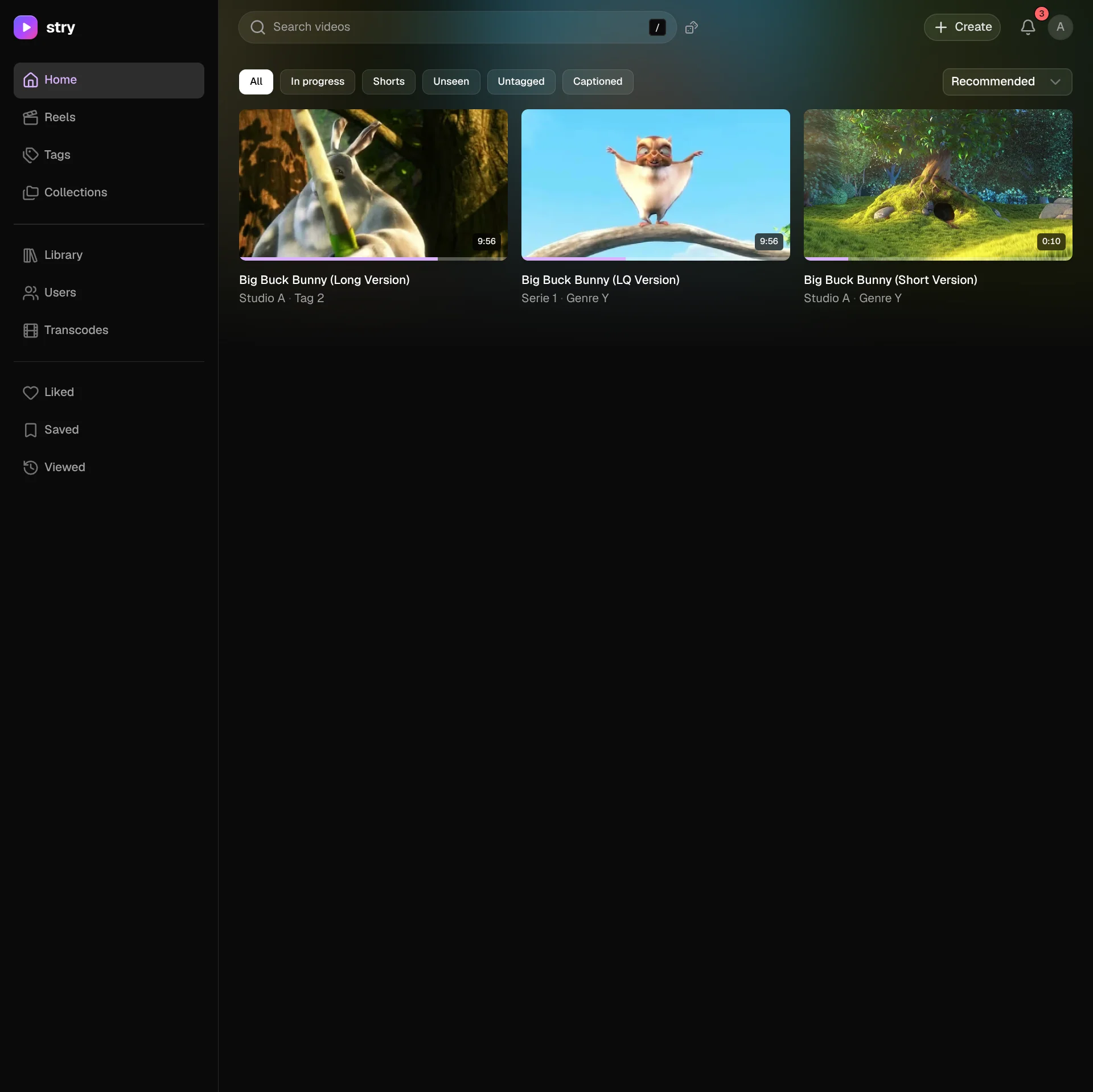
The start page shows your videos in a grid with their watch progress. You can search, filter by All, In progress, Shorts, Unseen, Untagged or Captioned, and change the sort order. The sidebar links to every other page.
Reels
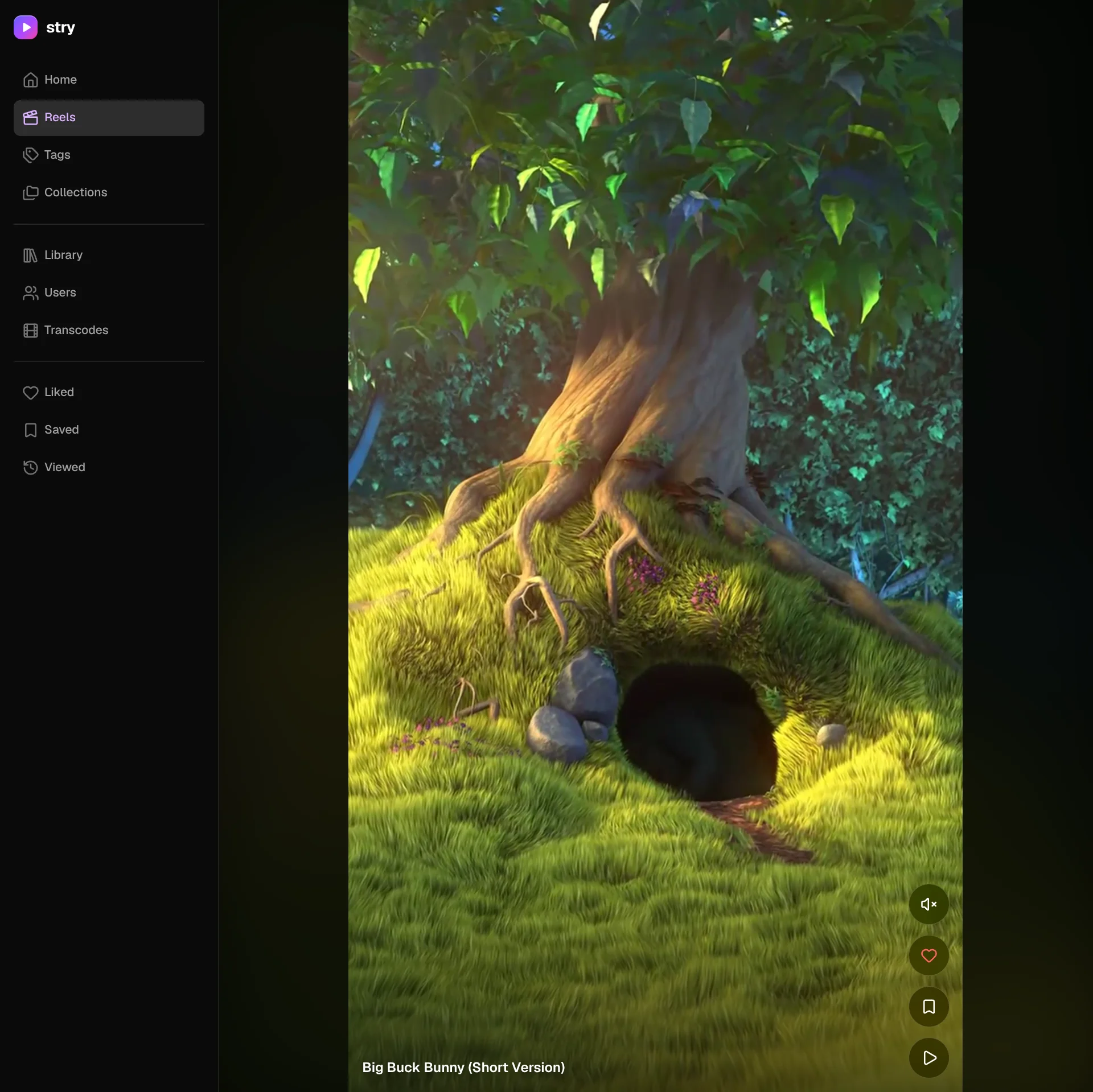
Short vertical highlight reels cut from each video's best scenes, in a full-screen feed you swipe through. You can like, save or open the full video from a reel.
Video player
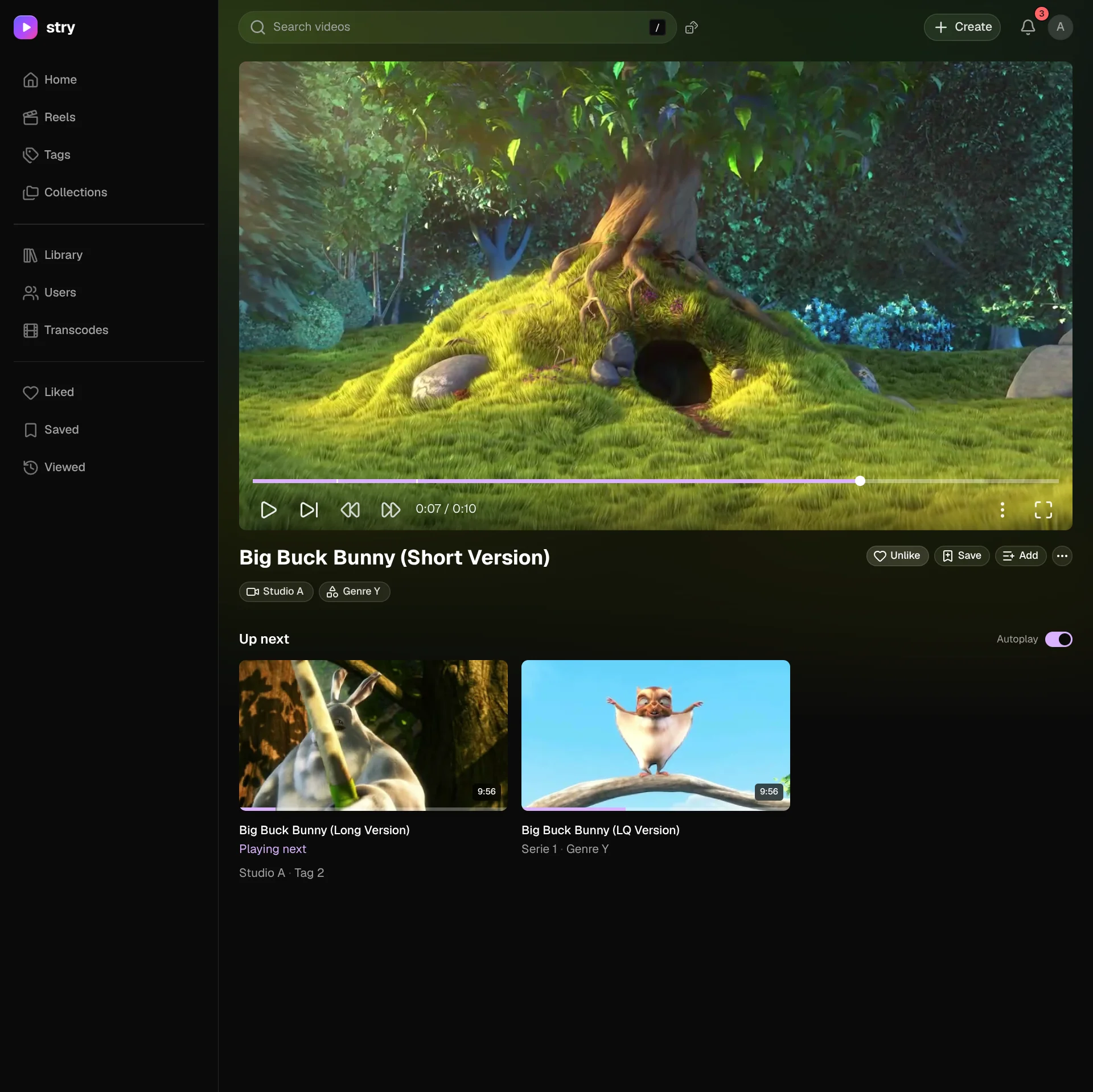
The video player, with a progress bar, playback controls and Like, Save and Add buttons. Below it is an "Up next" list that plays automatically when Autoplay is on.
Edit video
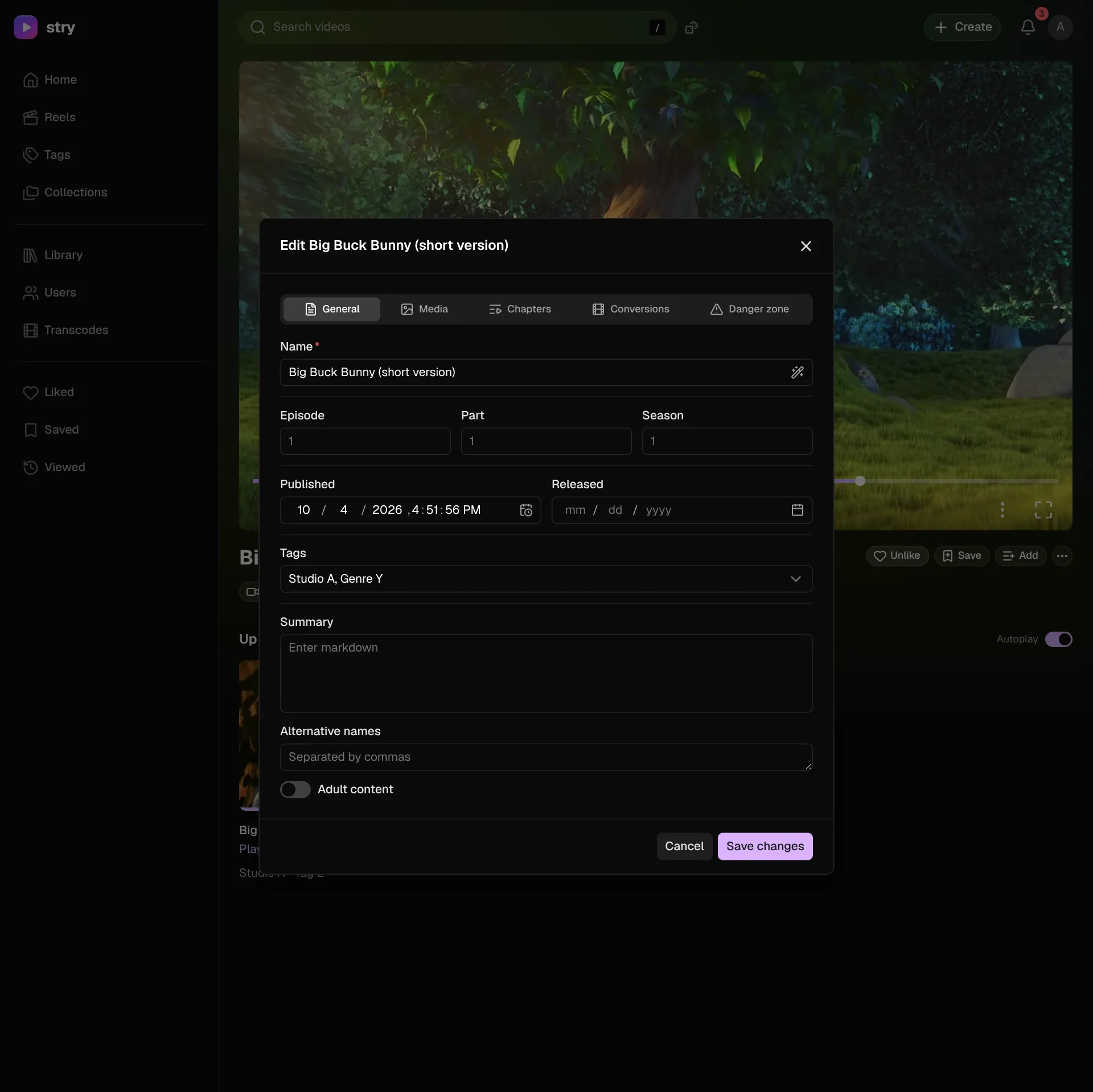
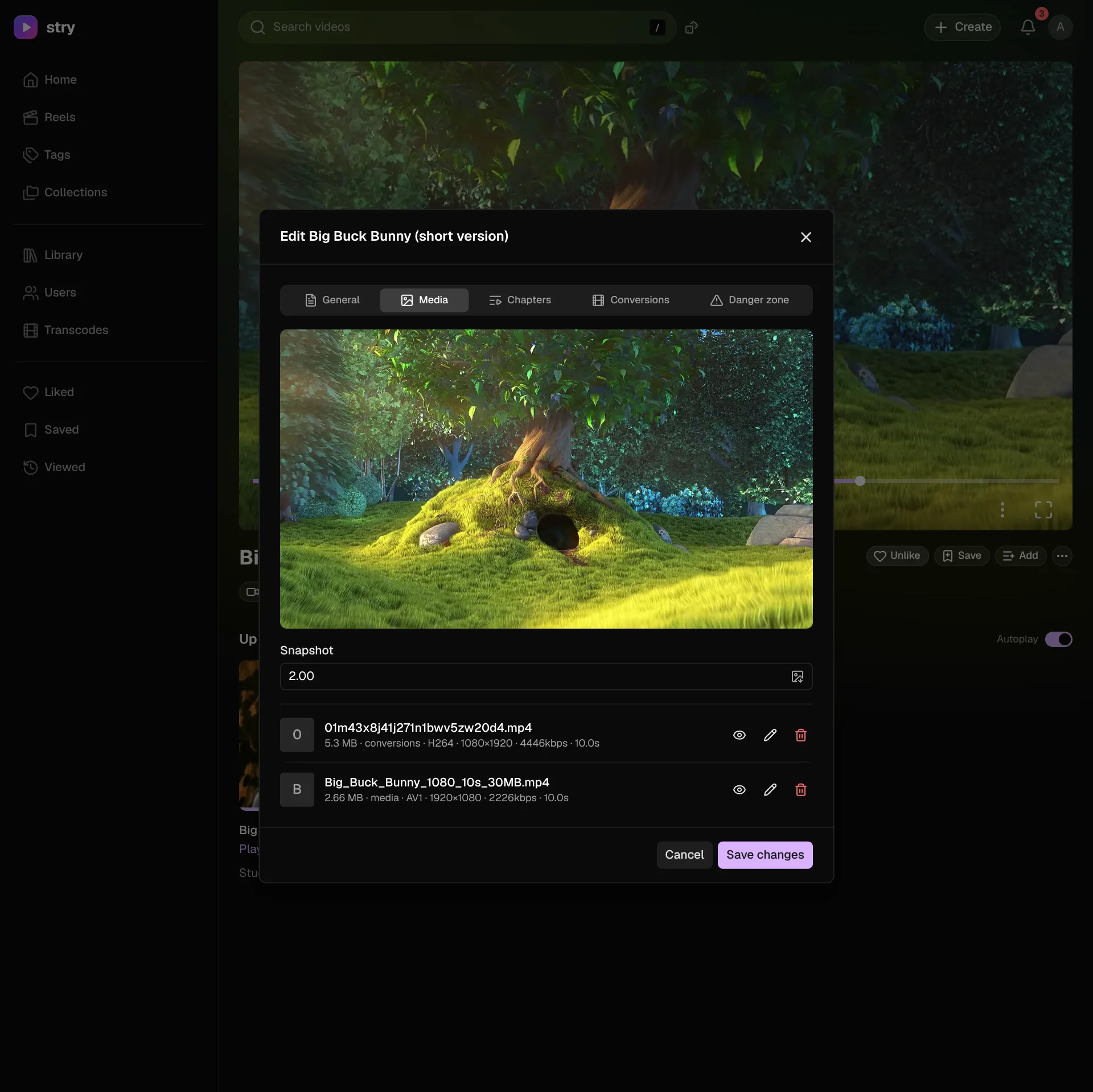
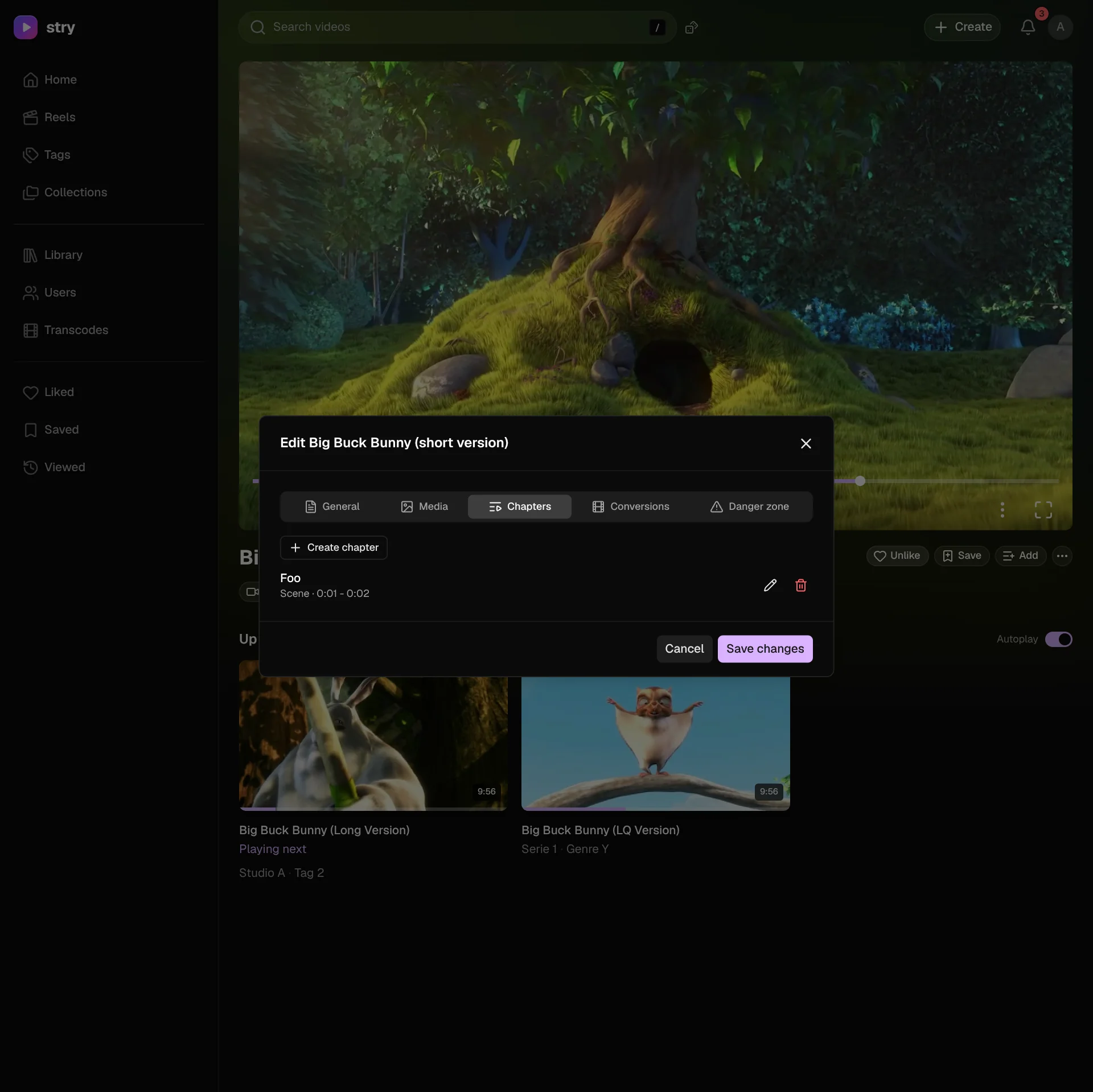
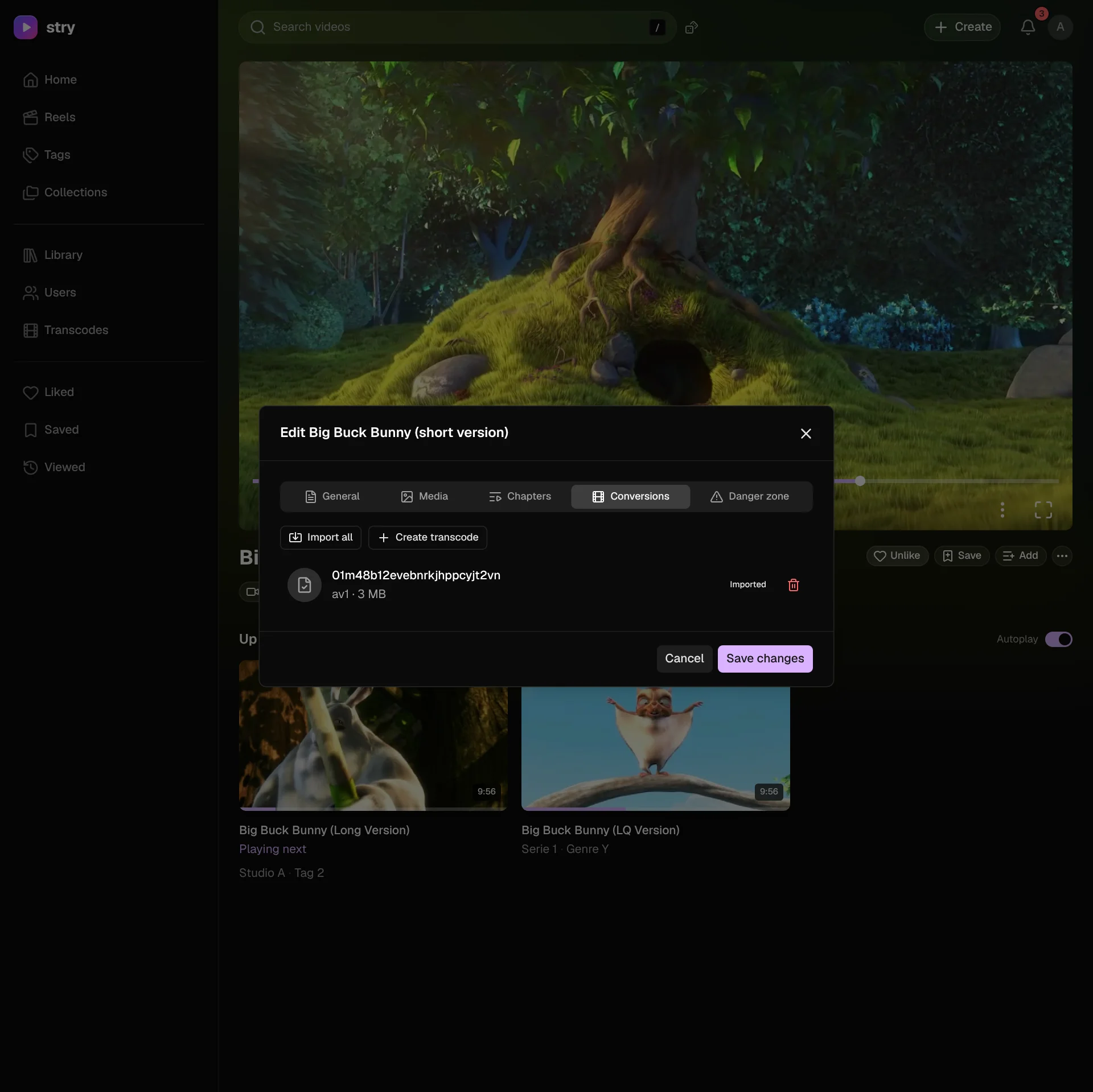
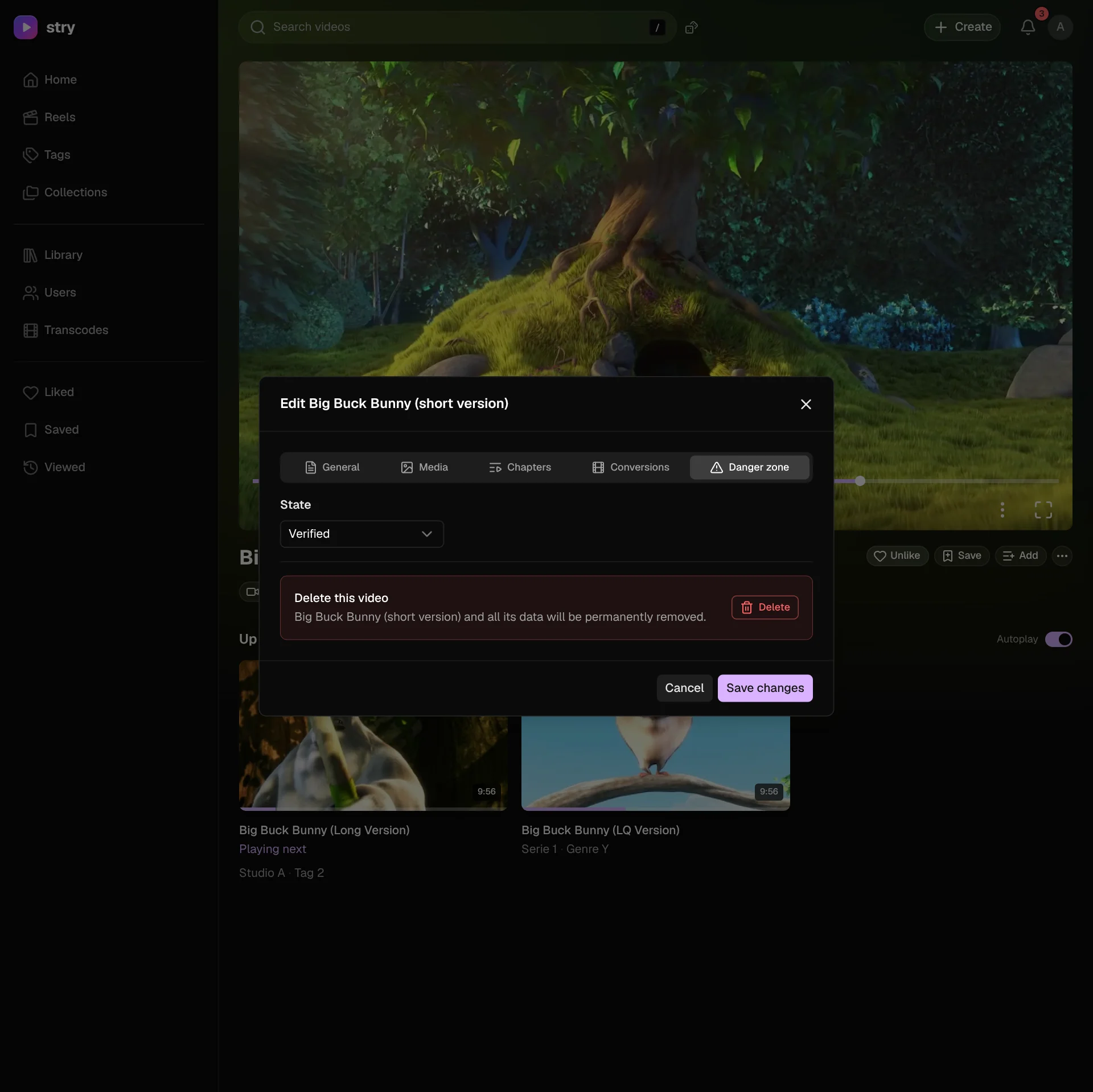
Videos are edited in a window with five tabs: General for the details, Media for the file and its snapshot, Chapters for the chapter list, Conversions for renditions and AV1 transcodes, and Danger zone for the verification state and deleting the video.
General
Media
Chapters
Conversions
Danger zone
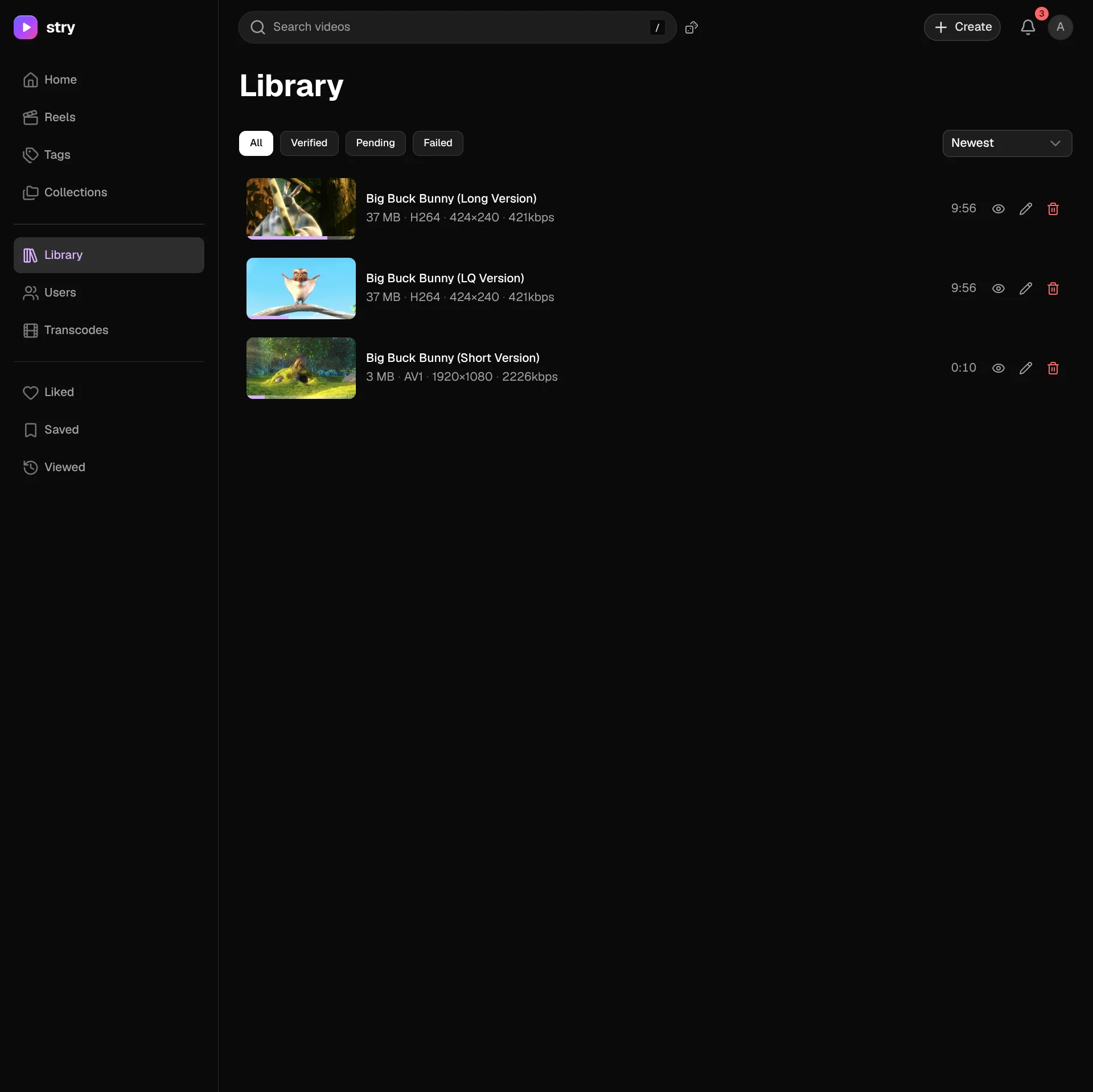
Library
Shows every video as a compact row with its size, codec, resolution and bitrate. You can filter by verification state (All, Verified, Pending, Failed), and each row has buttons to view, edit or delete the video.
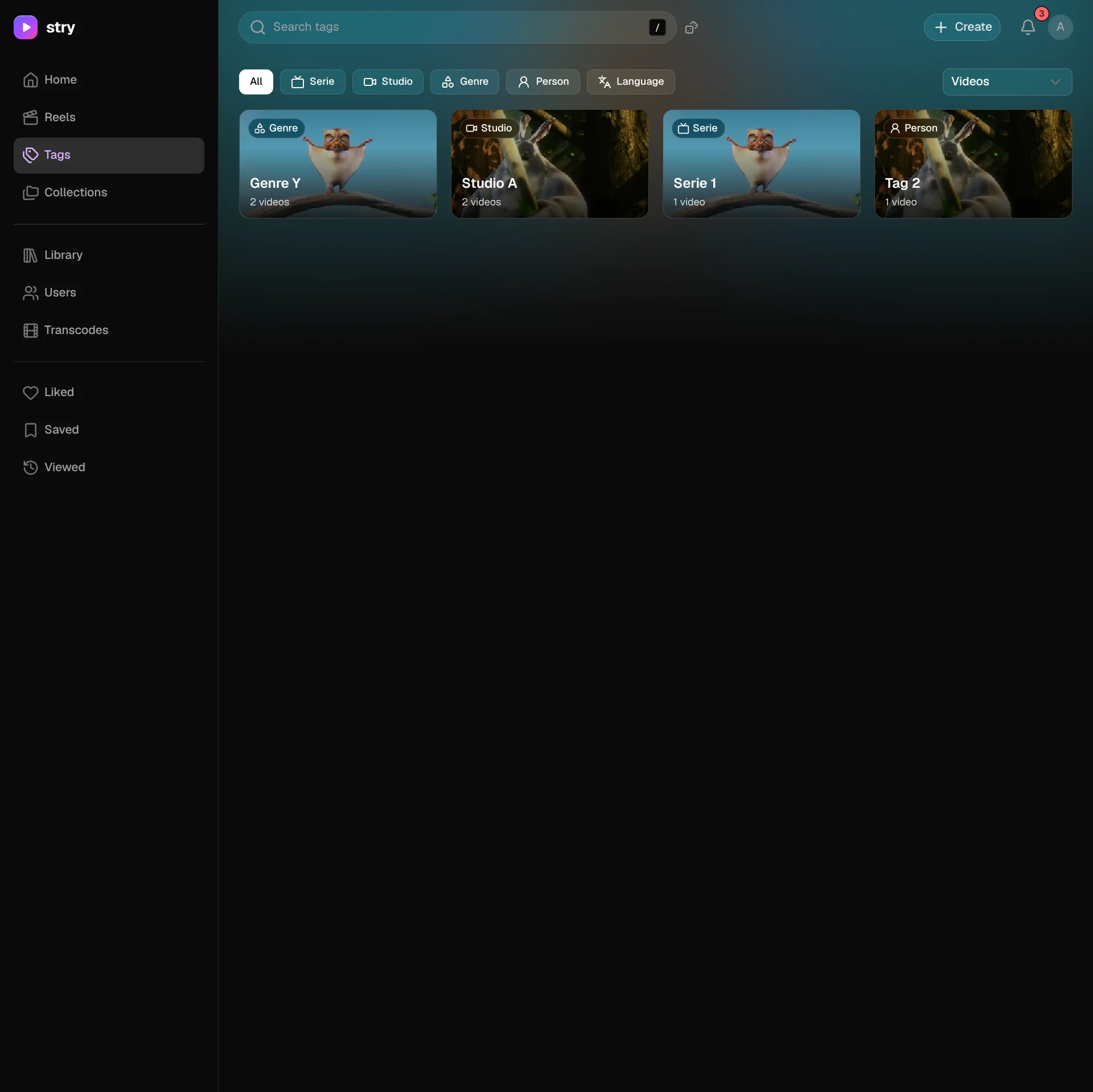
Tags
Browse tags by type (Serie, Studio, Genre, Person, Language). Each tag shows how many videos it has.
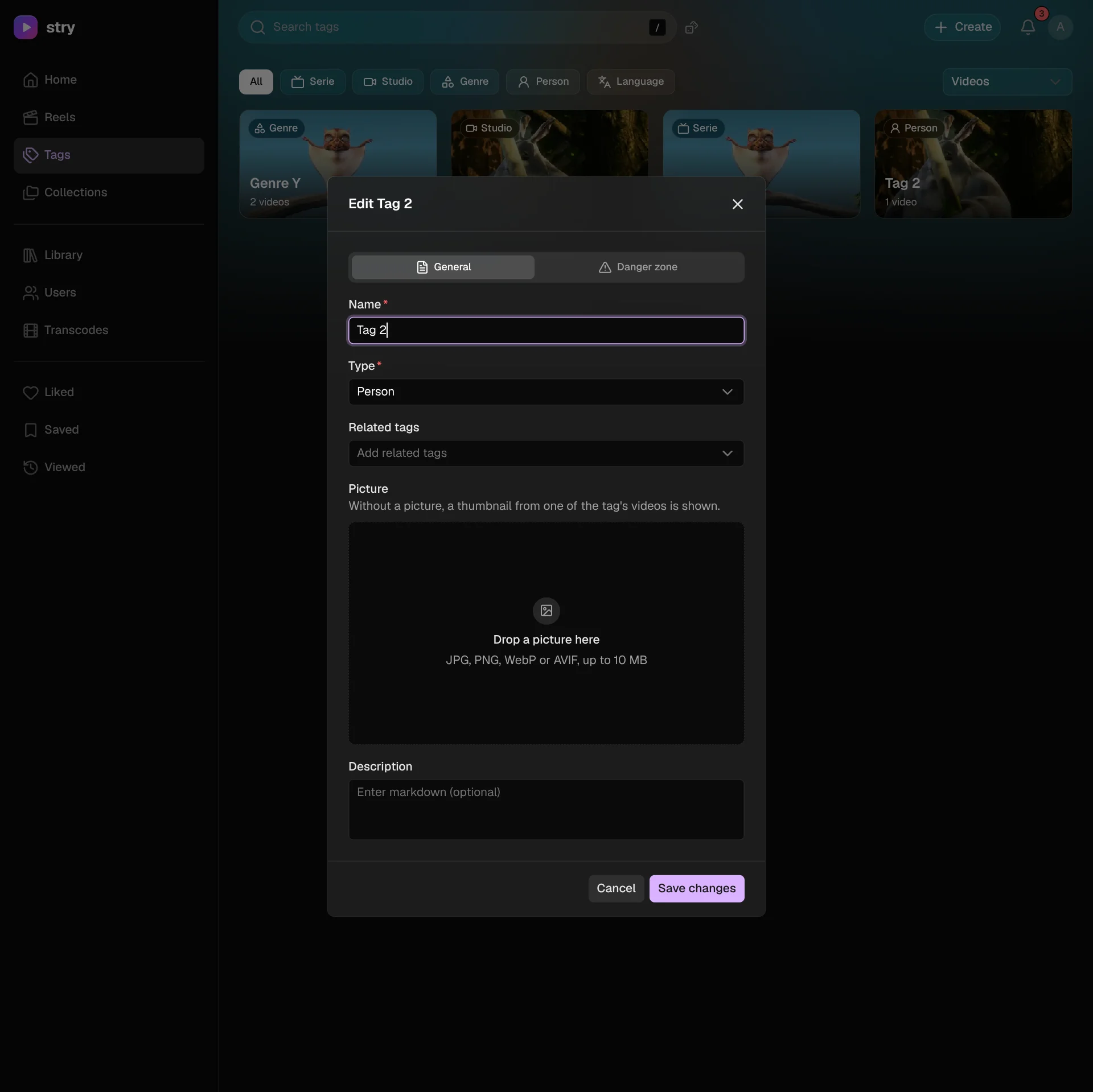
A tag has a name, a type, related tags, a description and an optional picture. Without a picture, a thumbnail from one of its videos is shown.
Collections
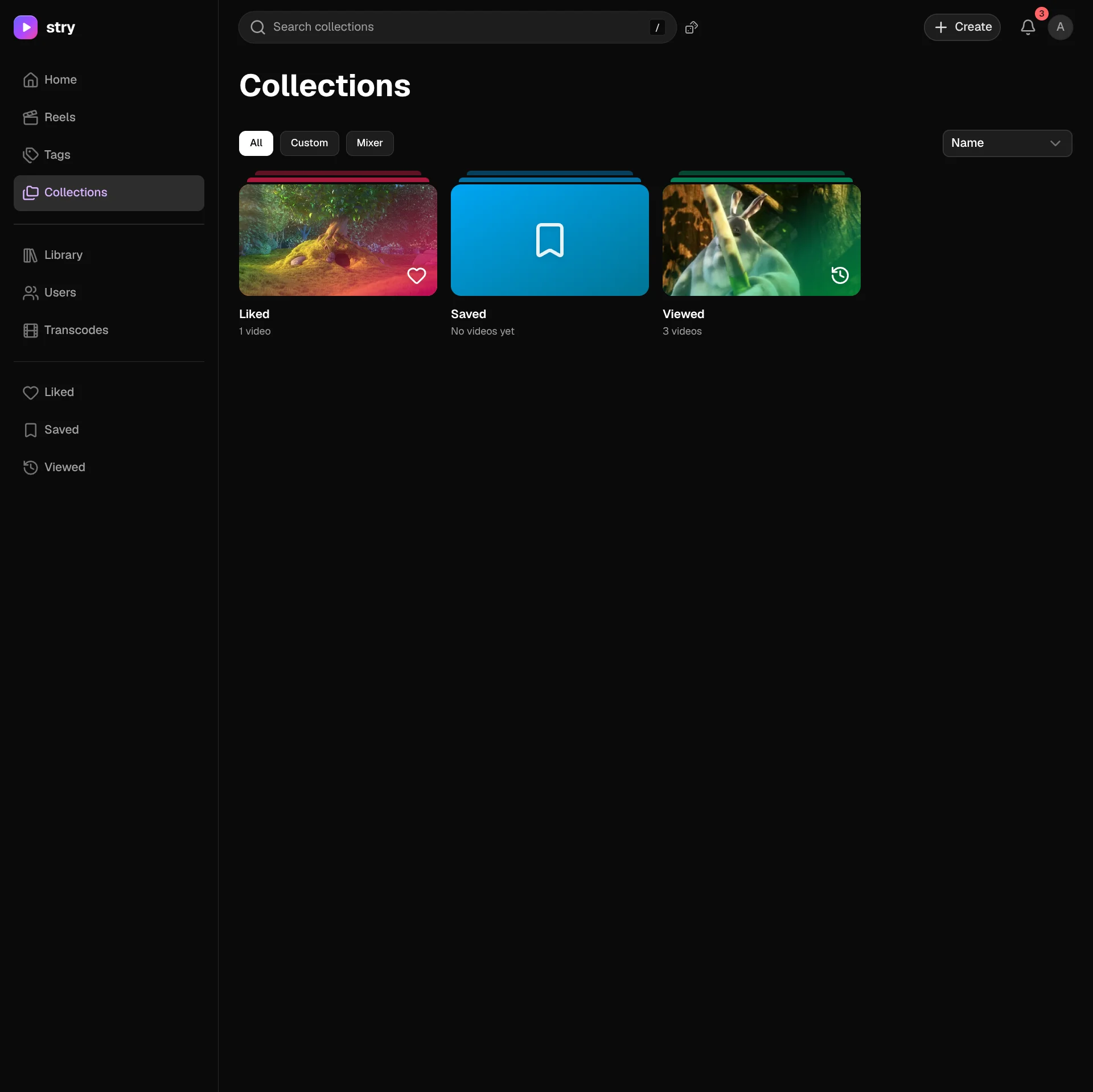
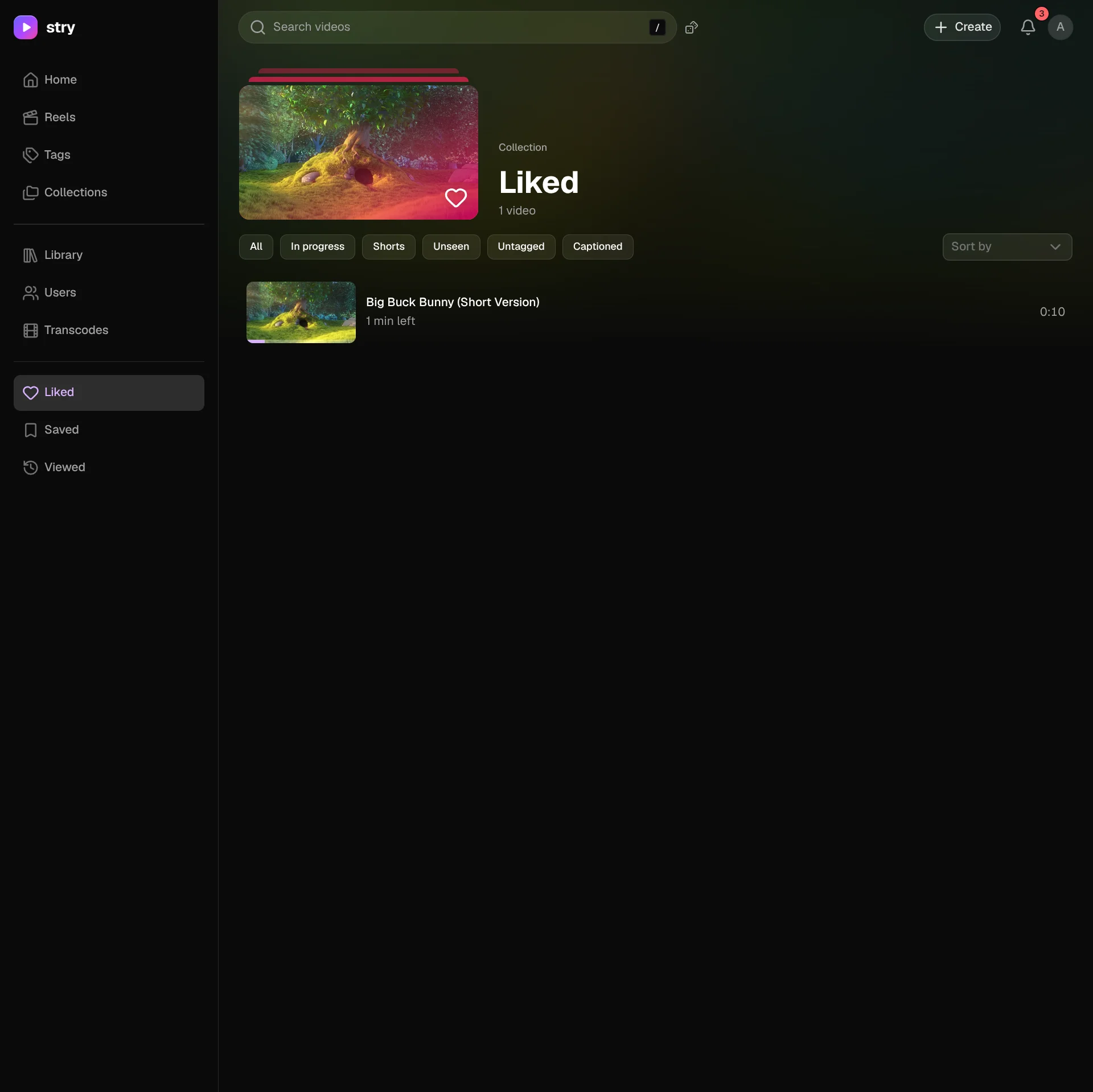
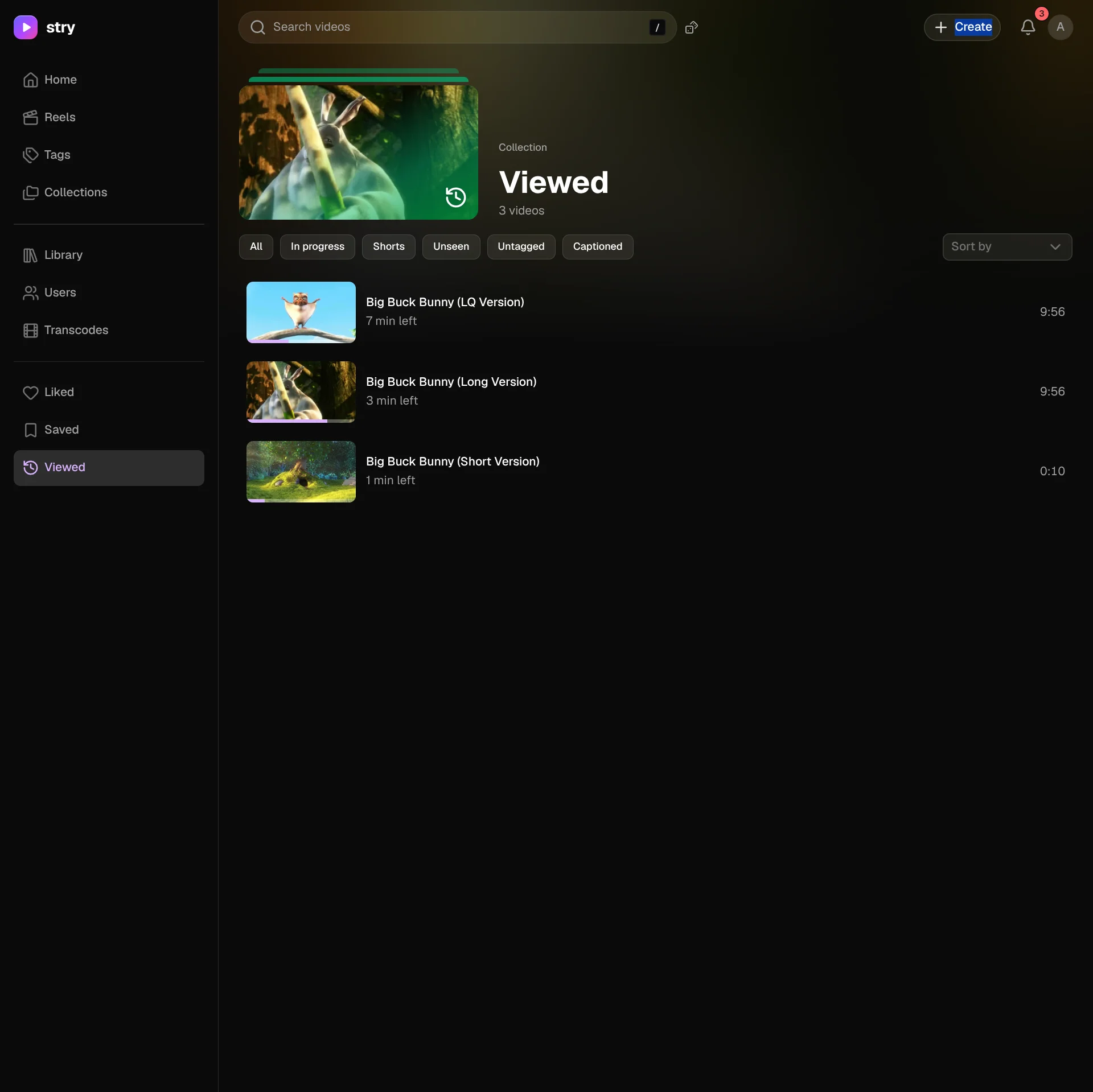
The built-in Liked, Saved and Viewed collections, plus any collections you create yourself.
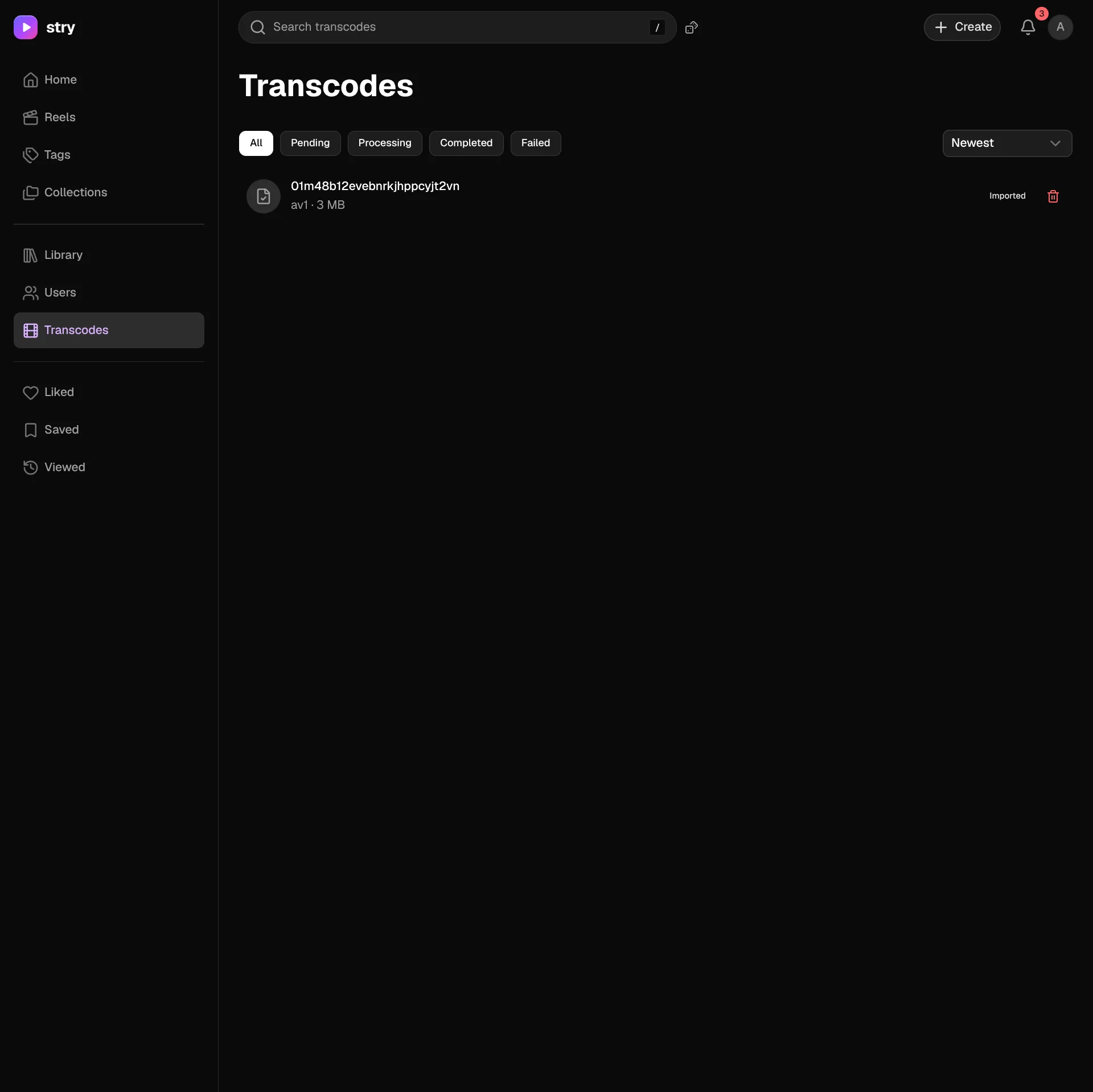
Transcodes
Every AV1 transcode and its state. You can filter by Pending, Processing, Completed or Failed.
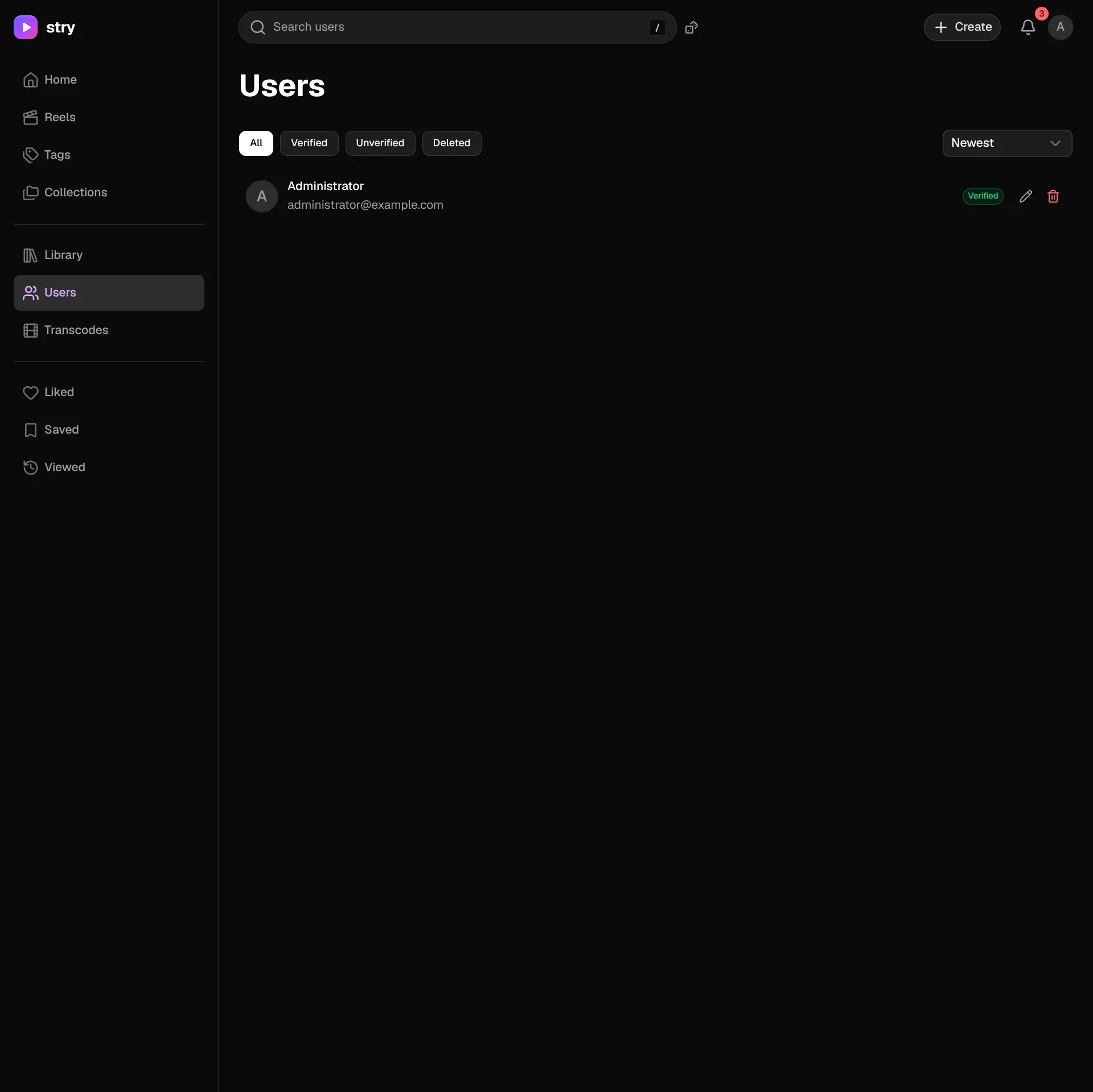
Users
Manage user accounts. You can filter by status (All, Verified, Unverified, Deleted), and edit or delete each user.
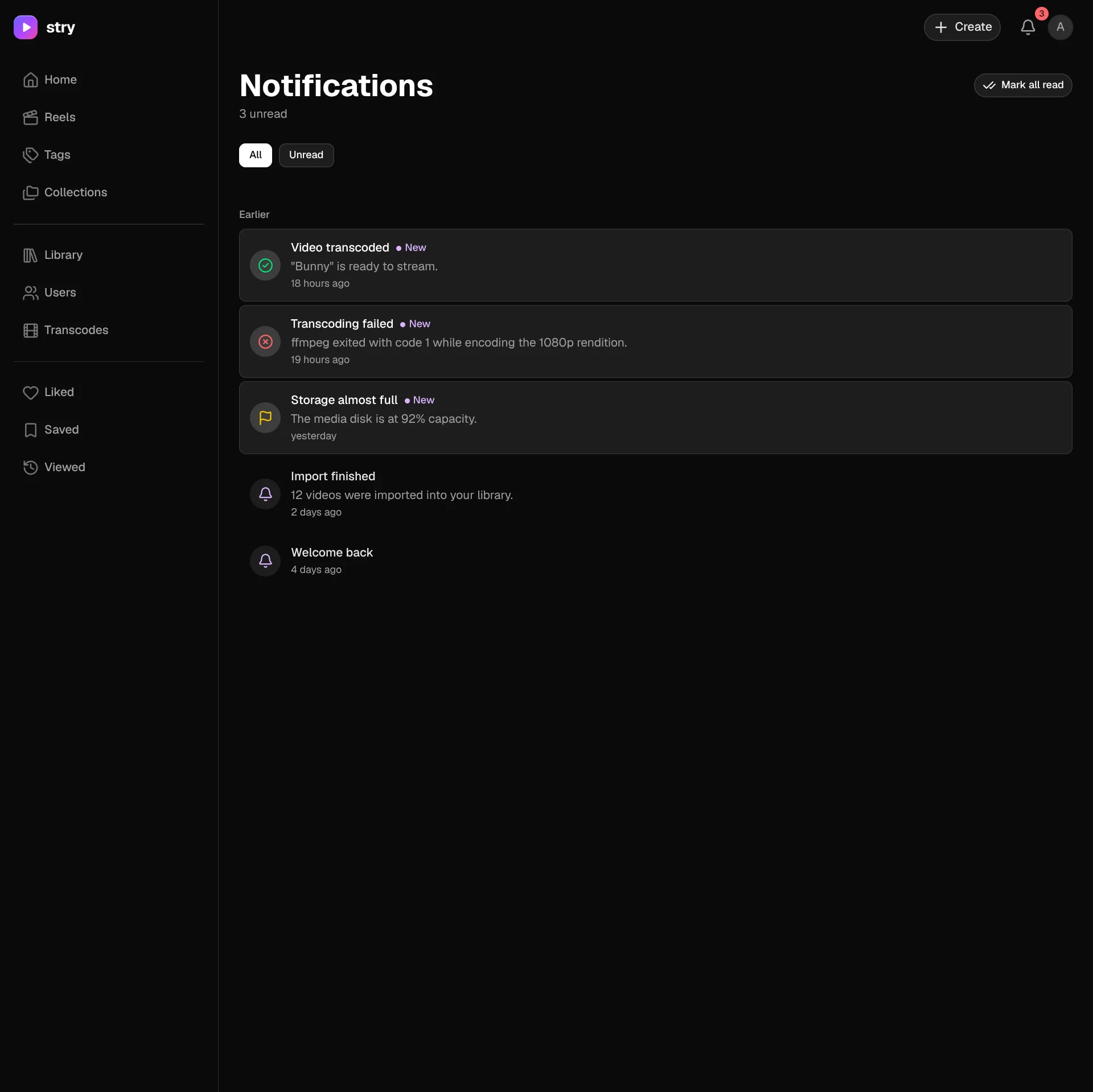
Notifications
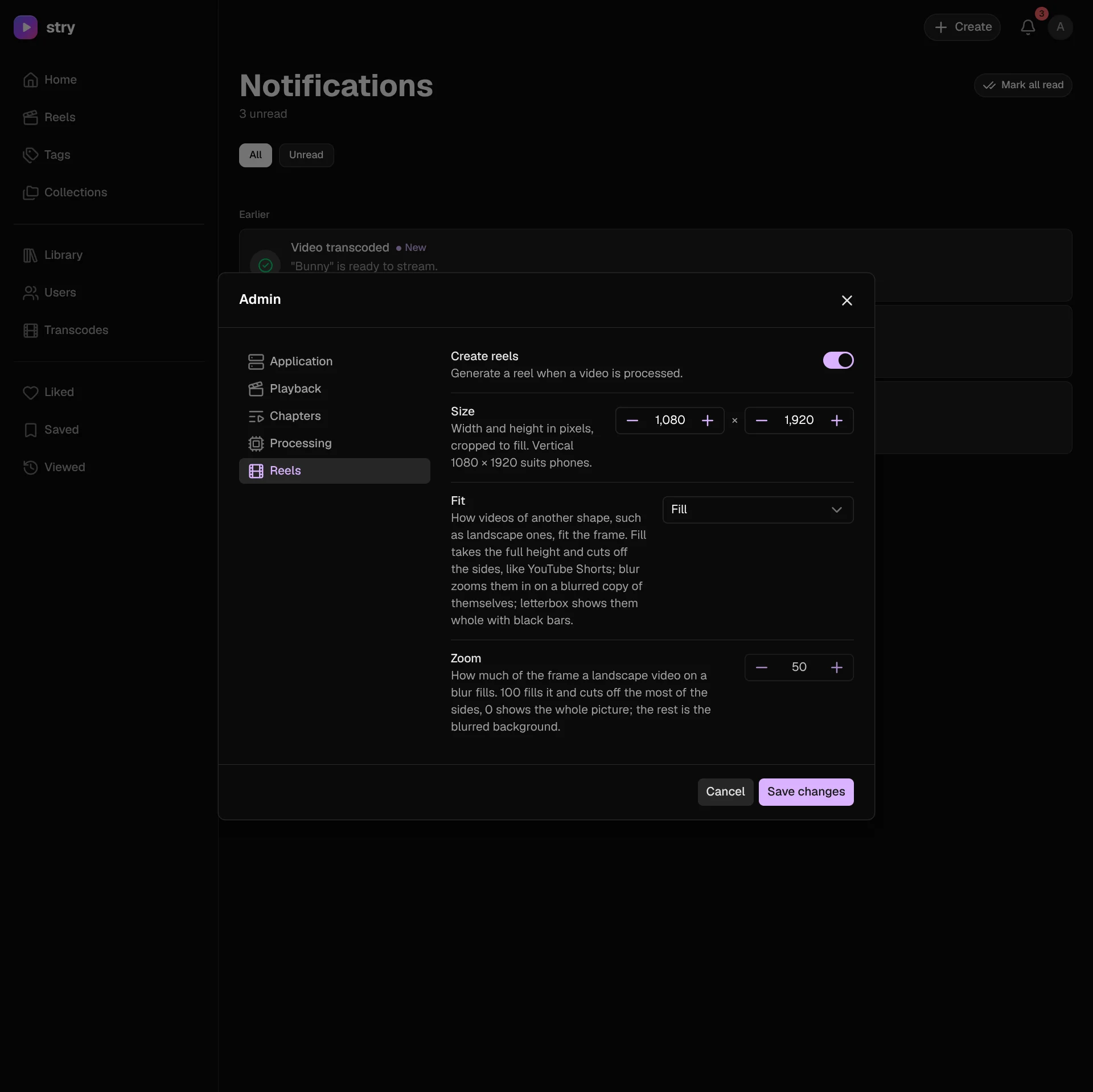
Finished and failed transcodes, imports and storage warnings show up under the bell. You can show only the unread ones, or mark them all as read.
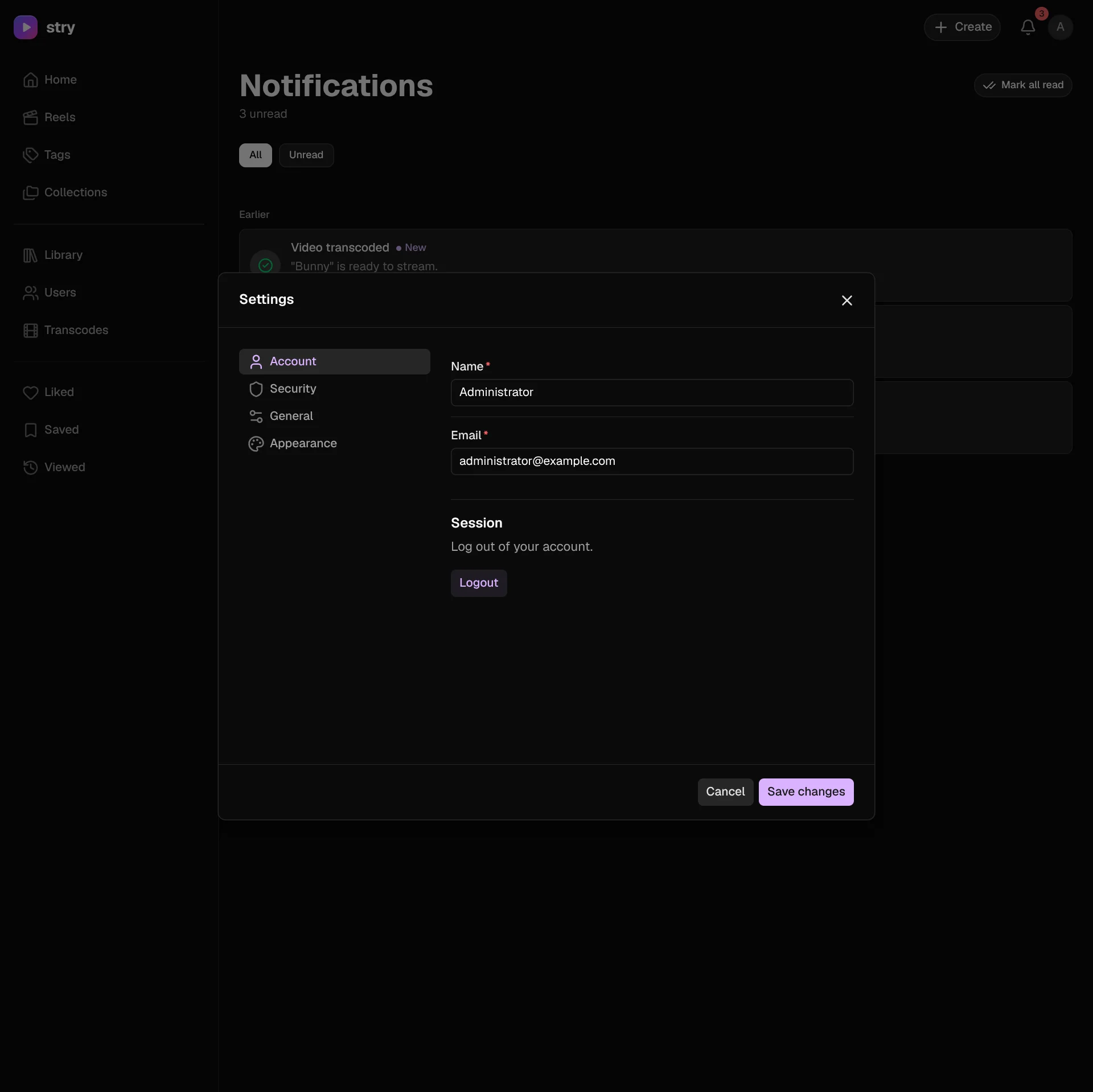
Account settings
Change your name and email, or log out, on the Account tab. The Security, General and Appearance tabs are next to it.
Admin settings
Administrators change how the whole app behaves in the Admin window.
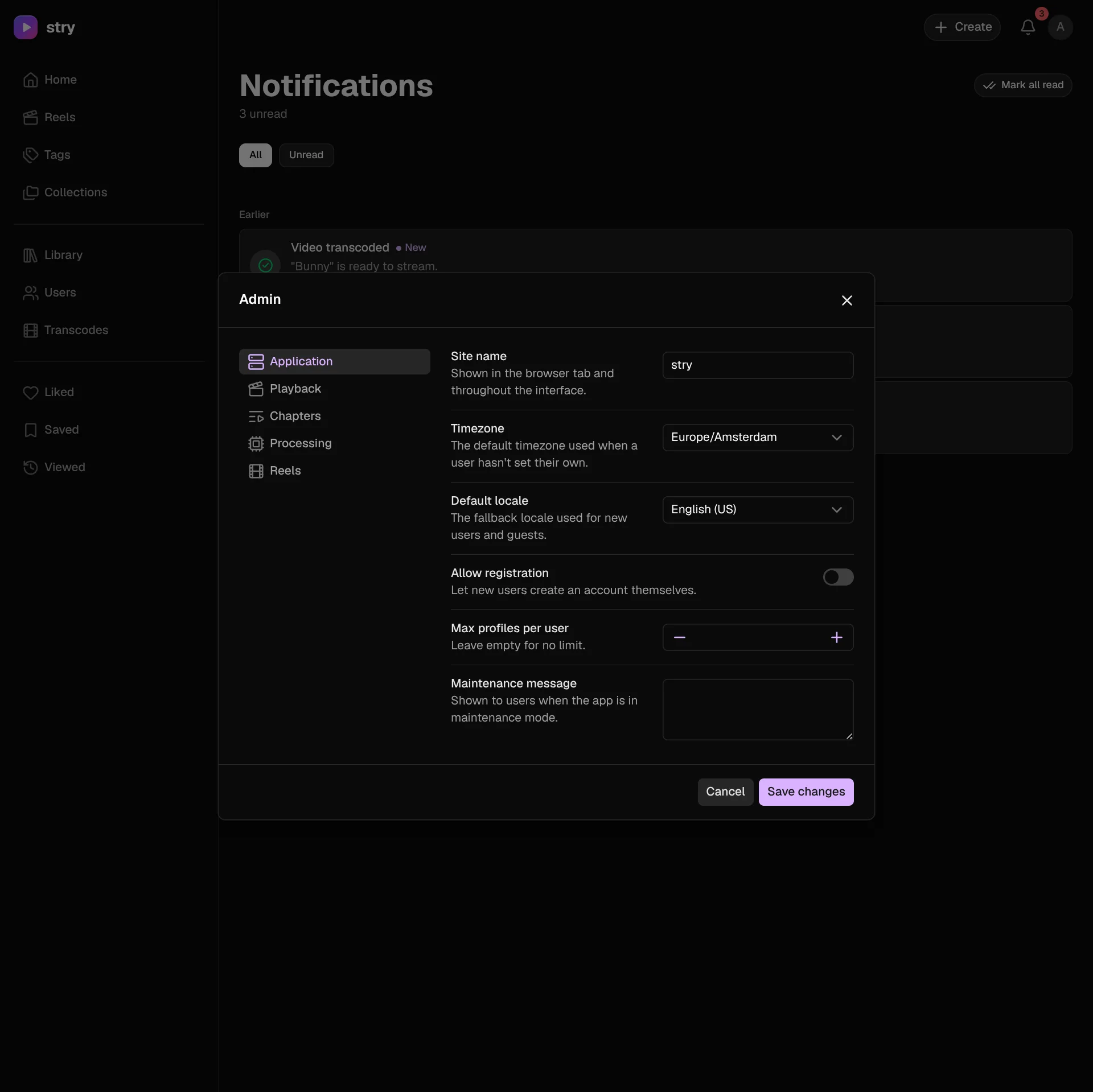
Application
The site name, default timezone and locale, whether people can register, how many profiles each user can have, and the maintenance message.
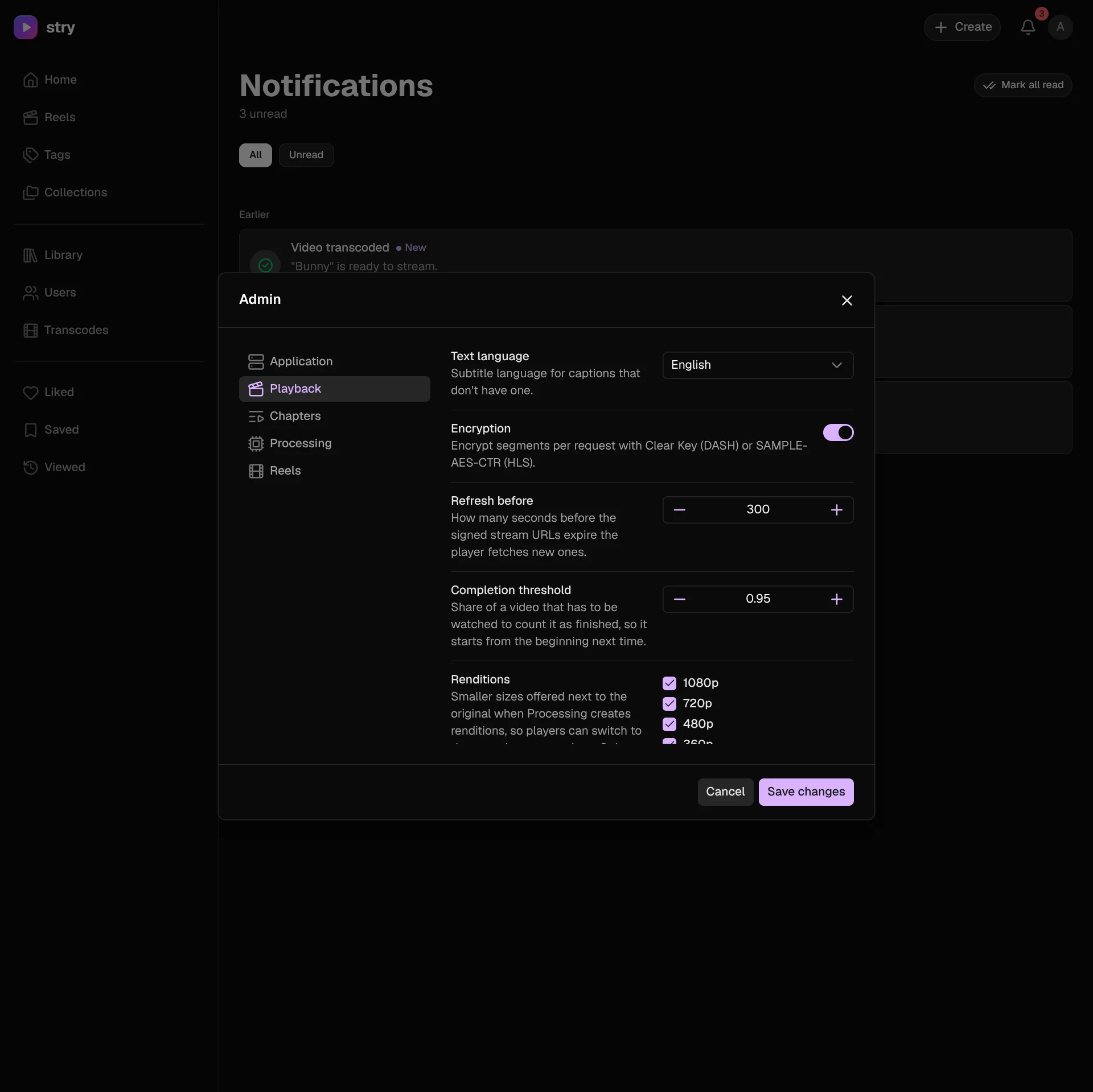
Playback
The default caption language, stream encryption, when signed stream URLs are refreshed, when a video counts as watched, and which renditions are offered.
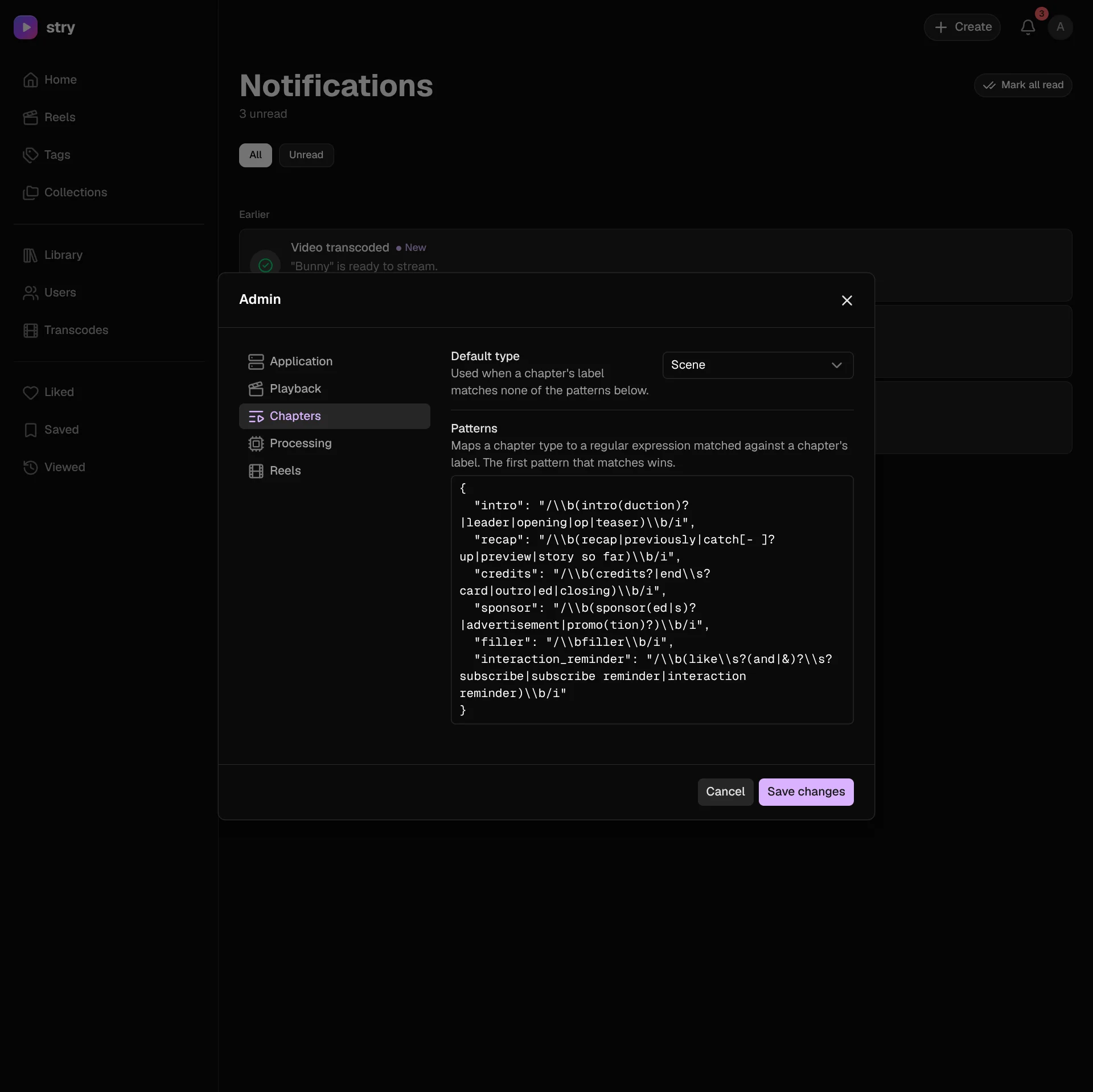
Chapters
The default chapter type, and the patterns that match a chapter's label to a type such as intro, recap or credits.
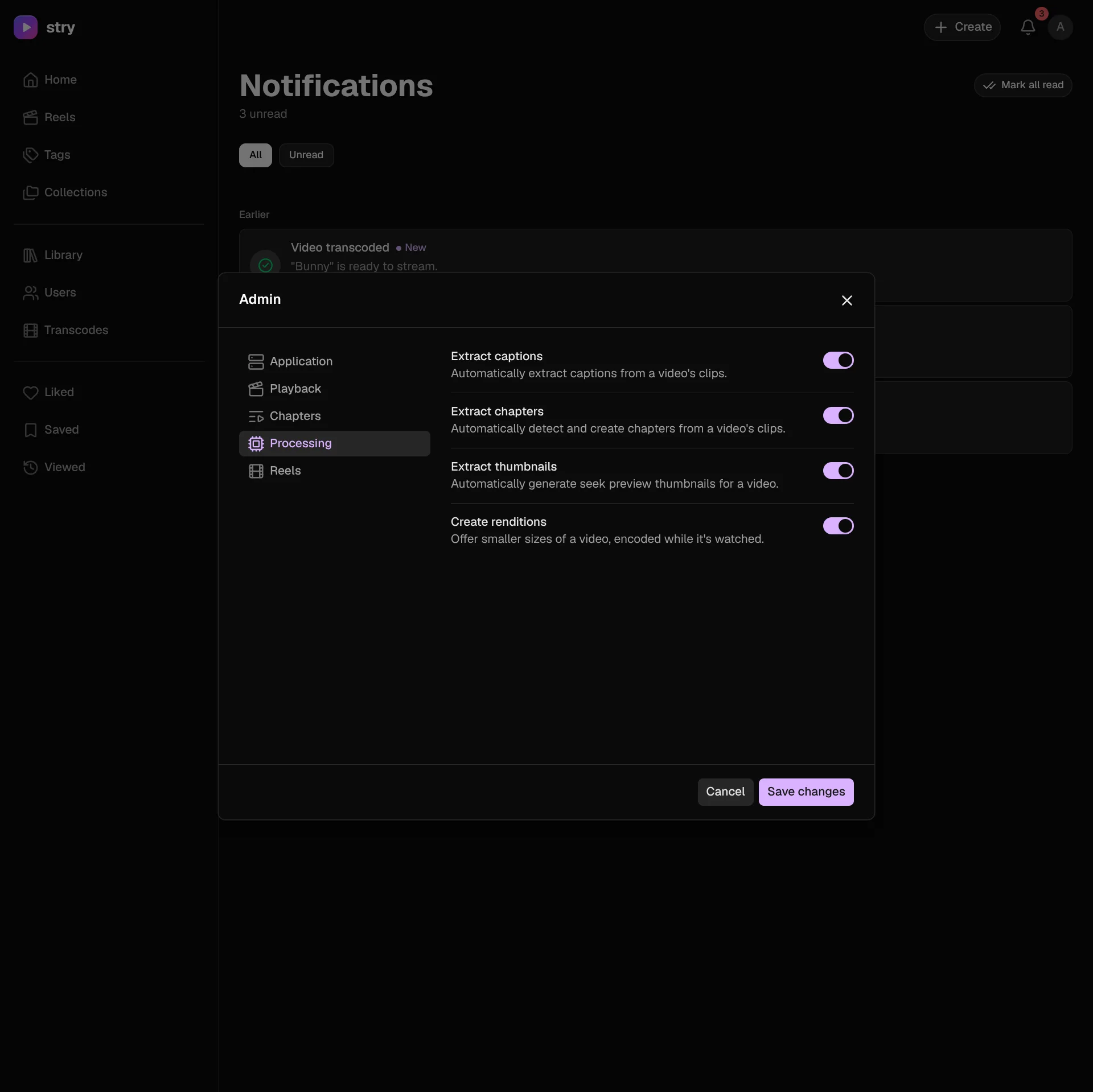
Processing
Turn extracting captions, chapters and seek thumbnails, and creating renditions, on or off.
Reels
Whether reels are created, their size, and how videos of another shape fit the frame.